Listed as Chigiri Memo - Split Notes · iPhone only · English / 日本語 · Free with ads
Concept
Write onto one page. Split out what you need later.
Card-based note apps make you decide where something goes before you write it. Split Notes works the other way round: you split things out afterwards. Filing becomes a decision you can postpone.
Each tab holds one continuous page, not a stack of cards. While you type, everything you wrote earlier stays in view.
There are no folders. You switch headings with the tabs along the top.
Cut lines
A line marks where one block ends.
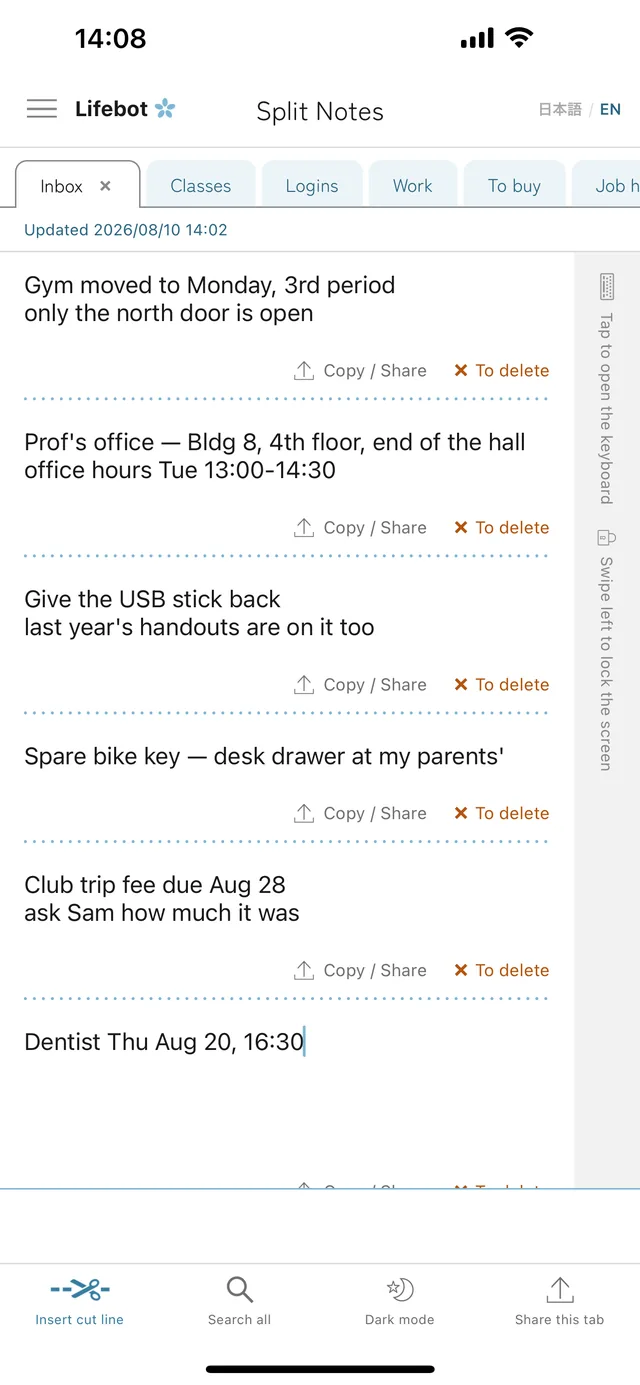
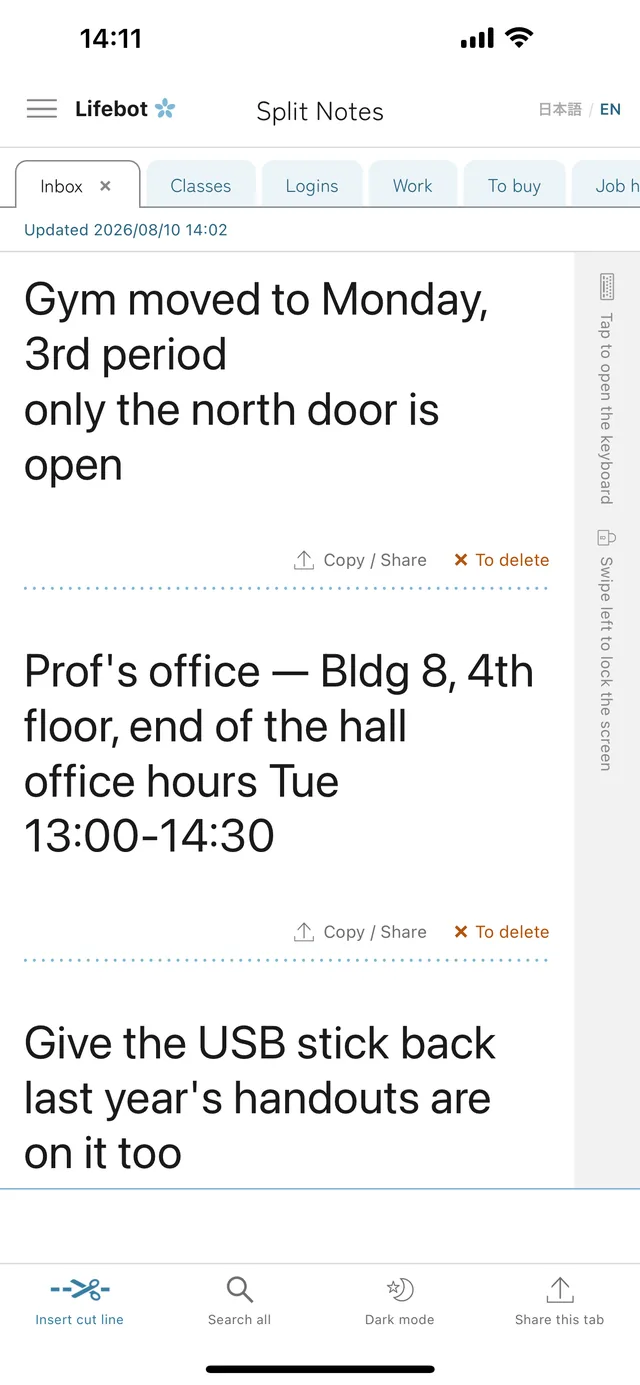
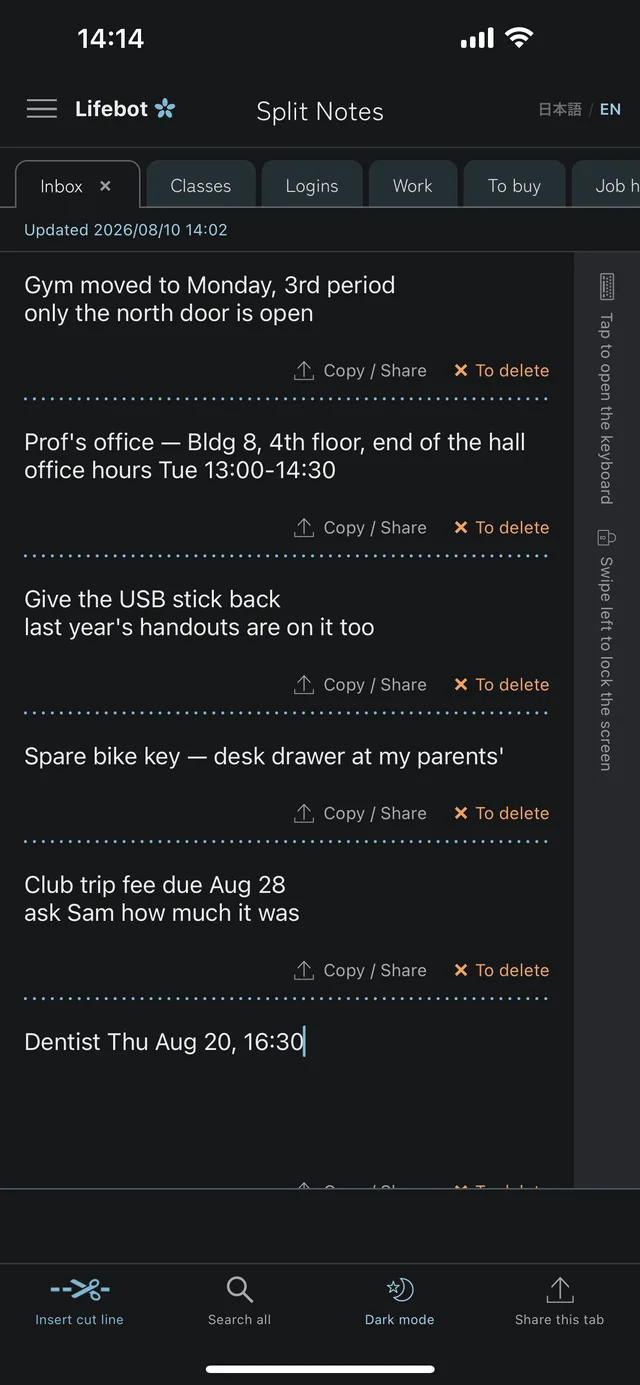
Tap Insert cut line in the footer and a line appears wherever the cursor is. The Copy / Share and To delete buttons sit just above each line, and they act on the block above that line only.
Gym — moved to Monday, 3rd period only the north door is open
Copy / Share ✕ To delete
Prof's office — Bldg 8, 4th floor, end of the hall office hours Tue 13:00–14:30
Copy / Share ✕ To delete
Give the USB stick back last year's handouts are on it too
Copy / Share ✕ To delete
The line is dotted because it is not a ruling — it means you can tear it off here.
Press and hold to remove it. The blocks above and below become one again, so you can re-divide wherever you like.
One tab fills up with blocks, one after another.Reading mode
Move the cursor without opening the keyboard.
Doesn't it get in the way when the keyboard pops up every time you touch the page? Split Notes lets you select text without opening the keyboard. Tap the strip along the right edge when you want to write.
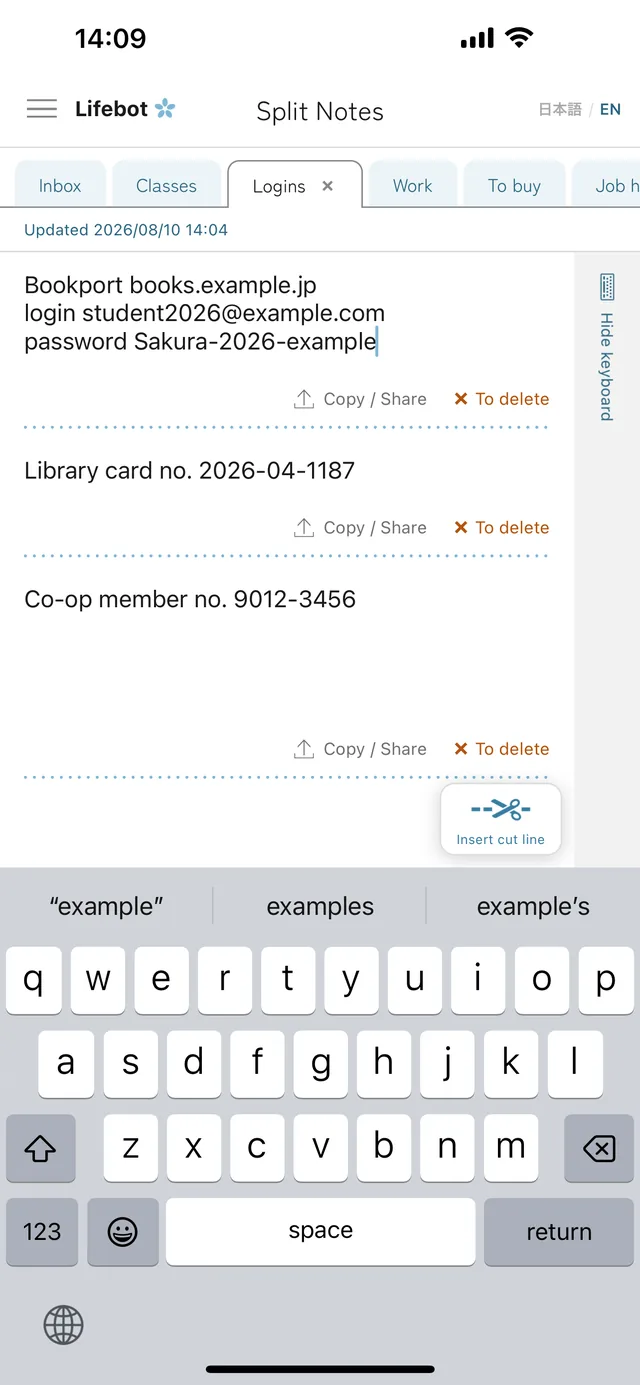
While the keyboard is up, the Insert cut line button floats just above it. You can split what you wrote at any time.
Insert a line without putting the keyboard away.Repeated text
We tell you when you repeat yourself.
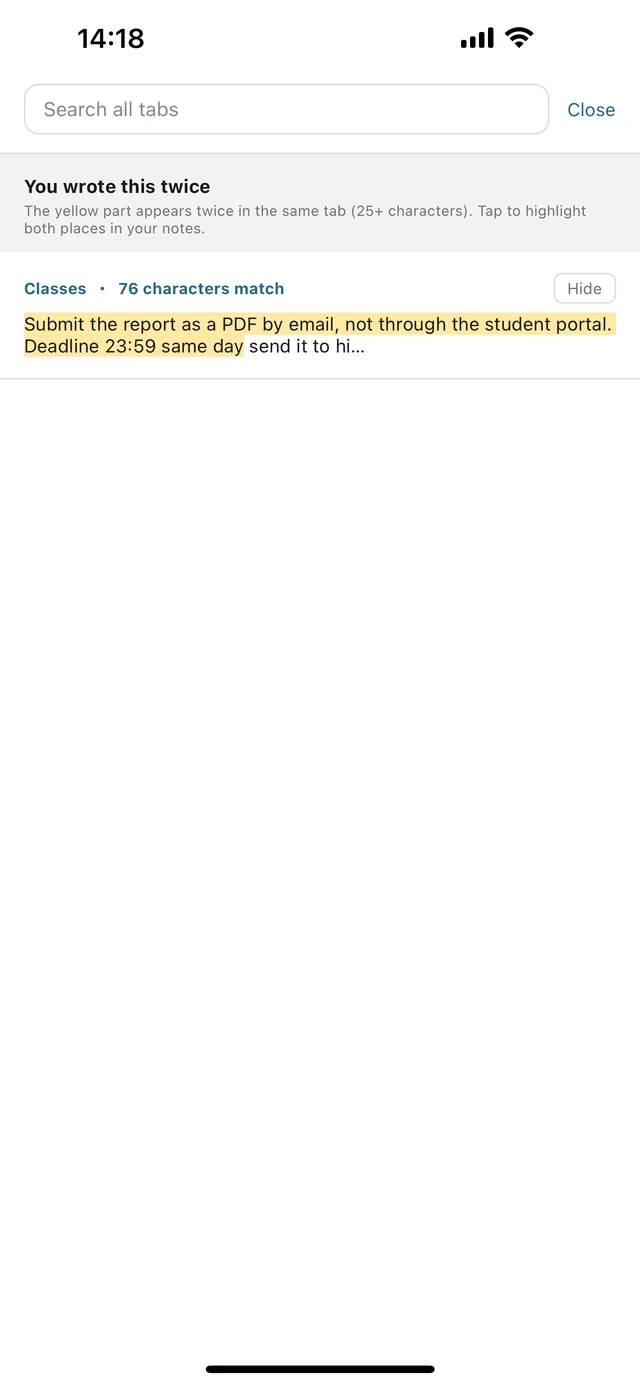
Keep throwing notes into one place and you end up writing the same thing twice. Press Search all and the app points out what you repeated within the tab. Tap a row to see where.
If it turns out you need both, choose “Don't show” and that pair stops appearing.
Tidying up
Tidy up by moving blocks to another tab.
When a tab fills up, moving blocks elsewhere clears it out. Mark one with To delete before you move it and it turns light grey, so you can see how far you have got. Mark as many as you like.
Tap the grey area and only then is it deleted.
Tab order
Push the tabs you don't need out of sight.
Press and drag a tab to move it. Gather the ones you use on the left and the rest slide off the edge of the screen. Nothing has been deleted — scroll sideways and they come back.
There are no folders, so the order is the filing. Having a lot of tabs never becomes a problem.
Press and hold to move a tab. A single tap switches to it; tapping the selected tab again renames it.
Features
What it does.
Tabs instead of folders Tap a selected tab again to rename it. Press and drag to reorder — the ones you don't need slide off the screen. Add with +, remove the selected tab with its ✕ (the last one stays).
Cut lines Insert anywhere, remove by pressing and holding. Copy or share one block at a time.
Full-text search Across every tab. Tap a result to jump there, with the match lit up in yellow.
Earlier versions The last 30 per tab. Delete them one by one or all at once.
Pinch to resize the text Pinch the page with two fingers. The size you choose is remembered.
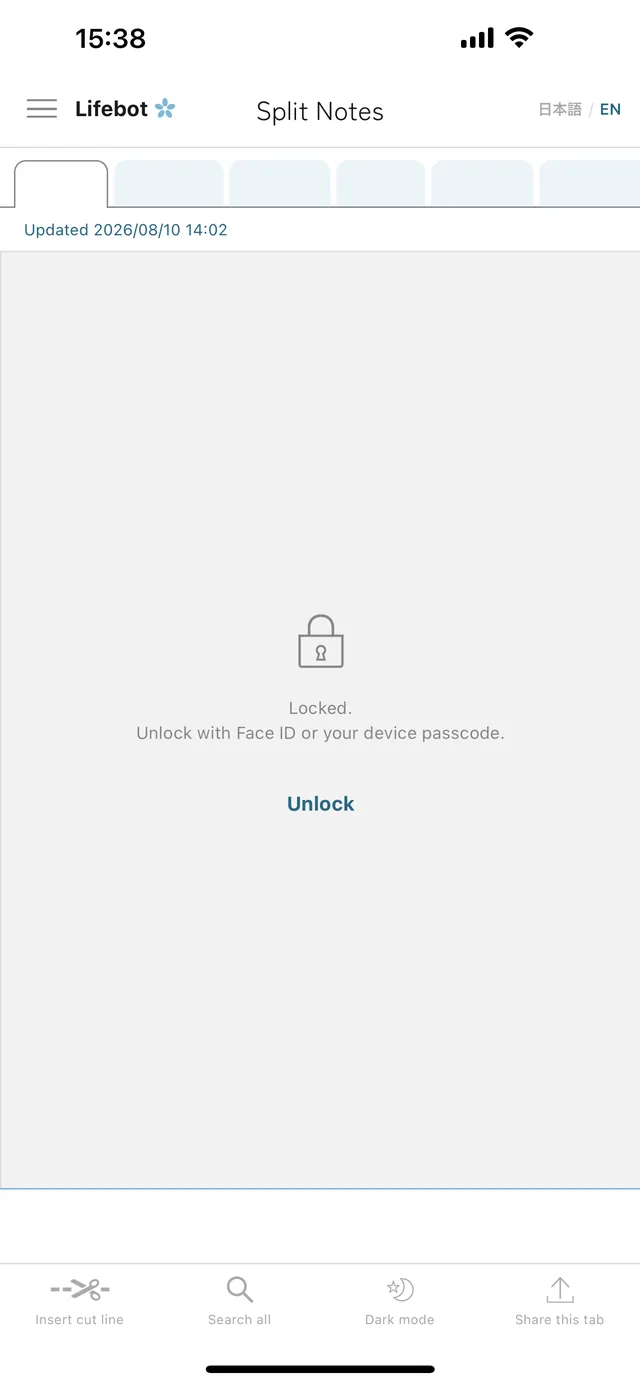
Screen lock Swipe the right-edge strip to the left and the text is covered. Unlock with Face ID / Touch ID, or your device passcode.
Dark mode The moon icon in the footer. Your choice is remembered.
Double-tap selects a whole run 1234-5678, user_name and email addresses are not cut in half.
Screens
The main screens.
One page, filling up split it with cut lines
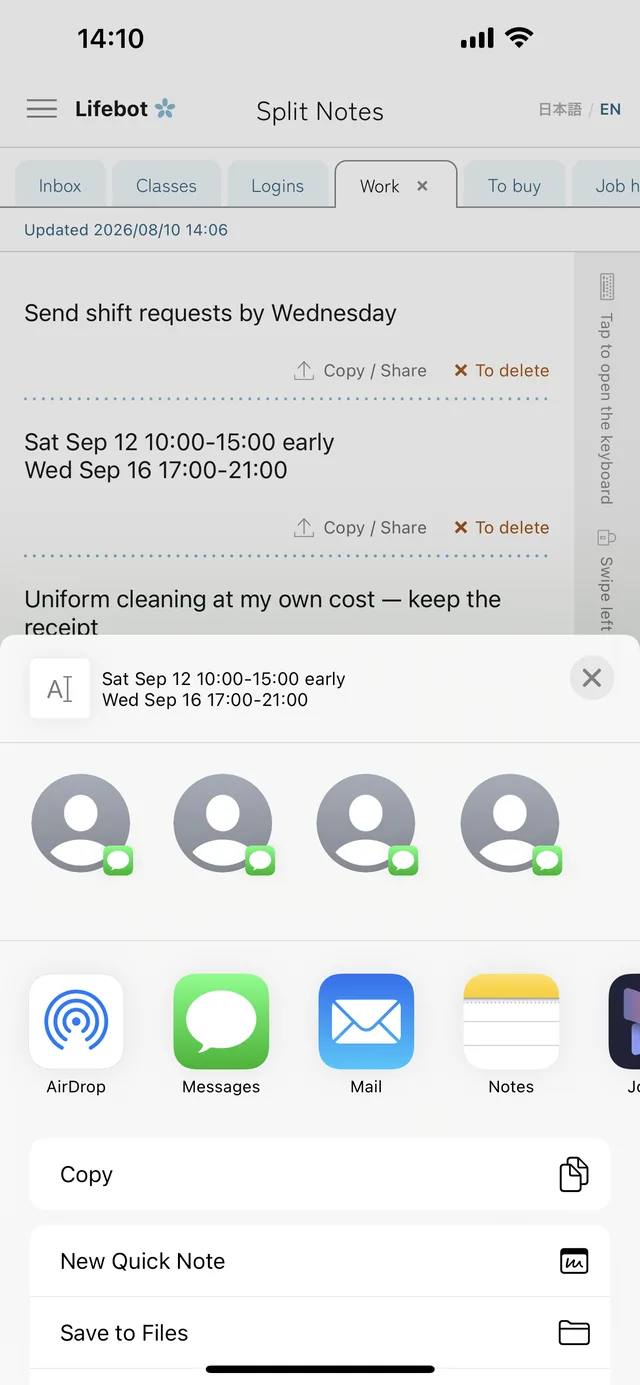
Copy or share just that one block
Lock the screen when someone's looking
Repeated yourself? the app tells you
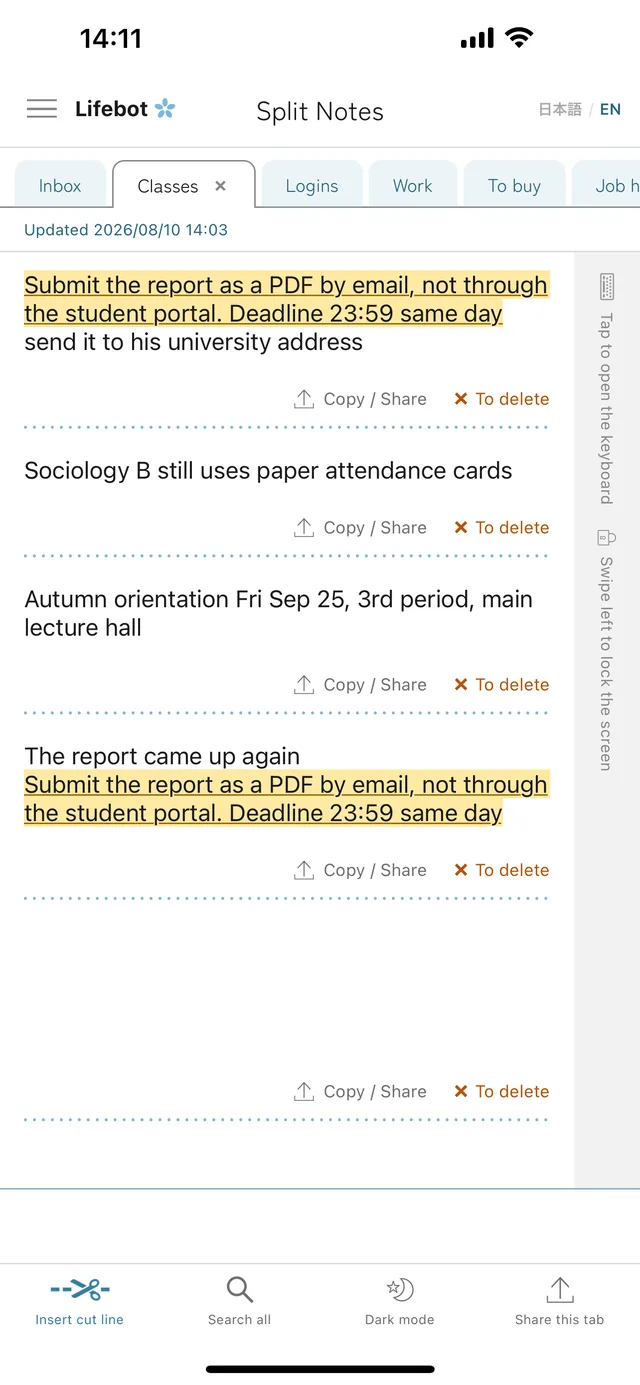
Tap a row and both places light up
Split while typing without closing the keyboard
Pinch to resize the text
Dark mode from the footer
Scroll sideways for more.
Privacy
Your notes never leave your device.
What you write is stored only in a database on your iPhone. There is no mechanism for sending it to our servers. There is no account and no sign-in.
It is built on the assumption that you will keep things like IDs and reference numbers in it — things you would rather not show anyone but do want written down. To lock the screen, just swipe the strip on the right and the door closes.
The screen lock is there for when you don't want the screen seen. It covers what is displayed; it is not a vault that encrypts the text itself. See the Privacy Policy for details.
Price
Free. Remove the ads with a one-time purchase.
Every feature is there from the start. Tabs, cut lines and full-text search are unlimited, the last 30 versions are kept, and the screen lock and dark mode both work on the free version.
The only difference is whether ads appear. Removing them is a one-time purchase, not a subscription — the App Store shows the price in your local currency.
Support
Support & Contact
For questions, feedback or bug reports, please write to the address below.
On your iPhone, and nowhere else. The app has no mechanism for sending them to a server. Because there is no account and no sign-in, there is also no path by which your notes could be tied to you.
Can I use it as a password manager?▼
It is built for keeping IDs, reference numbers and account numbers — things you would rather not show anyone but do want written down. That is also why a double tap selects a whole alphanumeric run. It is not, however, a vault that encrypts what you write. For anything that needs that level of protection, please use a dedicated password manager.
What does the screen lock hide?▼
It covers the text on screen. You unlock it with Face ID (or Touch ID), or with your device passcode if that doesn't work. On a device with neither biometrics nor a passcode set, there would be no way back in, so the lock is not offered at all.
Can I get back something I deleted by mistake?▼
Each tab keeps its last 30 versions. Tap the timestamp at the top of the note to see the list and restore from it. Anything older than 30 versions is gone.
I can't remove the bottom cut line.▼
That's intended. The bottom line closes off the writing area, so it comes straight back if you remove it.
Can I print?▼
No. iOS Print only accepts PDFs and images, so plain text notes do not offer Print in the share sheet. Copying, sharing and saving to Files all work.
Is there a backup, or syncing between devices?▼
Your notes are included in your iPhone backup. With iCloud Backup on, “Restore from Backup” brings them across when you change devices. There is no live sync between devices — that would require a server, and there isn't one.
Is there an iPad version?▼
Not at present. Split Notes is for iPhone only.
Download
Write it all down first. Split it later. Simple to use. Everything you need in one notepad.

 Copy / Share